
Introduction
If you are running a Laravel project on shared hosting and suddenly face a 500 Internal Server Error, you are not alone. This error is one of the most common (and frustrating) issues for developers, startup founders, and even CEOs who want their website live and stable.
This guide is written to help developers, business owners, and decision-makers quickly identify the root cause and fix the Laravel 500 error efficiently.
What Is Laravel 500 Internal Server Error?
A 500 Internal Server Error means the server failed to execute the request, but it doesn’t clearly explain why. On shared hosting, this usually happens due to:
- Incorrect file permissions
- Missing PHP extensions
- Wrong .env configuration
- Composer or vendor issues
- Limited server resources
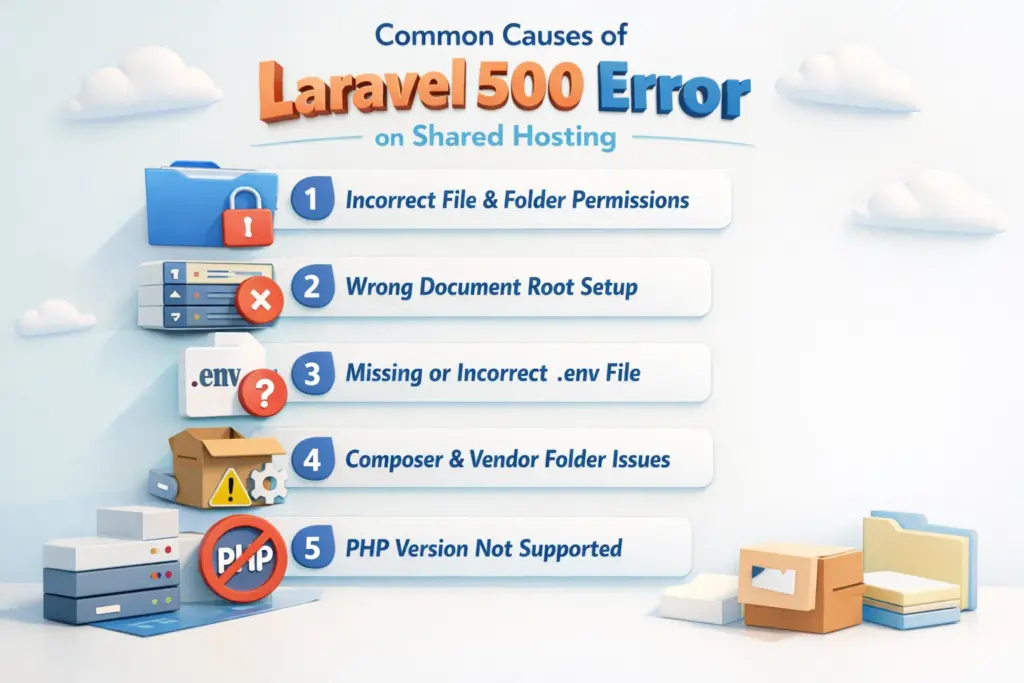
Common Causes of Laravel 500 Error on Shared Hosting
1. Incorrect File & Folder Permissions
Shared hosting environments are strict about permissions.
Correct permissions:
- Folders: 755
- Files: 644
Make sure these folders are writable:
- storage/
- bootstrap/cache/
2. Wrong Document Root Setup
Laravel’s entry point is the public folder.
❌ Wrong setup:
public_html/
app/
routes/
vendor/
✅ Correct setup:
public_html/
index.php
.htaccess
laravel_app/
app/
routes/
vendor/
Update paths inside index.php accordingly.
3. Missing or Incorrect .env File
Many 500 errors happen because the .env file is missing or misconfigured.
Check these values:
APP_ENV=production
APP_DEBUG=false
APP_KEY=base64:XXXXXXXX
Generate key using:
php artisan key:generate
4. Composer & Vendor Folder Issues
Shared hosting often blocks SSH access, causing vendor issues.
Solution:
- Run composer install locally
- Upload the vendor folder manually
Make sure:
- vendor/autoload.php exists
5. PHP Version Not Supported
Laravel versions require specific PHP versions.
| Laravel Version | PHP Required |
| Laravel 8 | PHP 7.3+ |
| Laravel 9 | PHP 8.0+ |
| Laravel 10 | PHP 8.1+ |
Change PHP version from cPanel → Select PHP Version.
6. Enable Error Logs (Very Important)
To see the real error, temporarily enable debugging:
APP_DEBUG=true
Also check:
- storage/logs/laravel.log
- cPanel → Error Logs
Turn debug OFF after fixing the issue.
OR How to Fix a 500 Error on a Laravel App in cPanel
Step-by-Step: How to Fix Laravel 500 Error in cPanel
Step 1: Enable Laravel Error Debugging
Edit .env file:
APP_DEBUG=true
This will show the exact error instead of a blank 500 page.
Step 2: Check Laravel Log File
Go to:
storage/logs/laravel.log
This file tells you the real cause of the error.
Step 3: Set Correct Permissions (Very Important)
Set permissions in cPanel:
- Folders:
755 - Files:
644 - storage/ →
775 - bootstrap/cache/ →
775
Step 4: Fix .htaccess File
Make sure .htaccess exists in public folder:
<IfModule mod_rewrite.c>
    RewriteEngine On
    RewriteRule ^(.*)$ public/$1 [L]
</IfModule>
Step 5: Select Correct PHP Version in cPanel
Go to:
cPanel → Select PHP Version
Recommended:
- PHP 8.0 / 8.1 (based on Laravel version)
Enable required extensions:
- mbstring
- openssl
- pdo
- tokenizer
- fileinfo
Step 6: Upload Vendor Folder or Run Composer
On shared hosting:
- Upload vendor folder manually
OR - Run:
composer install
Step 7: Generate Application Key
php artisan key:generate
If terminal not available, generate key online and paste into .env.
Step 8: Clear Cache
php artisan config:clear
php artisan cache:clear
php artisan view:clear
Best Practices to Avoid Laravel 500 Errors
- Always check Laravel logs
- Use correct PHP version
- Keep permissions secure
- Never delete vendor folder
- Use production-ready hosting
Step 1: Check the ‘Errors’ Log in cPanel
- Log in to cPanel.
- Navigate to Metrics > Errors.
- Review recent log entries related to your domain. These entries can indicate syntax errors in
.htaccess, missing modules, or permission issues.
Step 2: Review and Fix the .htaccess File
Misconfigurations in the .htaccess file often lead to 500 errors. Common issues include:
- Unmatched
<IfModule>tags. - Syntax errors.
- Duplicate
.htaccessfiles causing conflicts.
How to Fix:
- Open File Manager in cPanel.
- Navigate to your Laravel app’s root directory.
- Edit the
.htaccessfile and ensure all<IfModule>sections are correctly opened and closed. - If a duplicate
.htaccessfile exists under/public, remove it to prevent conflicts.
Step 3: Verify PHP Version Compatibility
An outdated or unsupported PHP version can trigger a 500 error. To change your PHP version:
- Log in to cPanel.
- Click Select PHP Version.
- Note your current PHP version in case you need to revert.
- From the dropdown list, select the desired PHP version. Ecenica supports versions 8.3, 8.2, 8.1, 8.0, 7.4, 7.3, 7.2, 7.1, 7.0, and 5.6.
- Click Set as current to apply the new version.
For more detailed instructions, refer to How to change PHP version on shared-hosting with cPanel.
Step 4: Check File Permissions
Incorrect file and folder permissions can cause server errors.
- Set folders to 755.
- Set files to 644.
You can update permissions via File Manager or by running the following commands via SSH:
find /home/youruser/yourapp -type d -exec chmod 755 {} \;
find /home/youruser/yourapp -type f -exec chmod 644 {} \;
Step 5: Run Laravel Commands
Ensure your application is correctly configured by running the following commands in your app’s root directory via SSH or Terminal:
php artisan config:clear
php artisan cache:clear
php artisan route:clear
php artisan view:clear
php artisan migrate
Step 6: Enable Debugging for More Insights
If the issue persists, enable Laravel’s debugging mode:
- Edit the
.envfile in your Laravel root directory. - Change the following line: APP_DEBUG=true
- Save changes and reload your site.
Quick Checklist for CEOs & Non-Technical Owners
If you are a CEO or business owner, ask your developer or hosting provider:
- Is the PHP version correct?
- Are storage permissions set properly?
- Is the .env file configured?
- Are logs checked for errors?
This saves time and prevents unnecessary downtime.
SEO-Friendly Keywords Used in This Blog
- How to fix Laravel 500 error
- Laravel 500 internal server error shared hosting
- Laravel error on shared hosting solution
- Fix Laravel internal server error cPanel
- Laravel deployment issues shared hosting
Helpful Internal & External Links
(Replace # with your internal blog URLs)
Final Thoughts
Laravel is powerful, but shared hosting has limitations. Most 500 Internal Server Errors are configuration-related and can be fixed with the right steps.
Whether you are a developer, startup founder, or CEO, understanding these basics helps ensure your website stays online and performs reliably.
If this guide helped you, bookmark it or share it with your team.